Students can use their RMIT ID or RMIT email address and password to log in to RMIT systems. You can also change or reset your password, if you forget it.
Manage password
Learn how to reset your password below.
Note: If you reset your password, it may take up to 15 minutes to sync across all systems and platforms.
RMIT systems login details
You can log in to all RMIT systems – including your RMIT email, campus WiFi, myTimetable, Enrolment Online, Canvas, myDesktop and myRMIT – using the following details:
- RMIT email address
- RMIT ID
- RMIT systems password
- Multi-factor authentication (MFA) for some systems
Logging in for the first time? See below for instructions on how to log in for the first time, create your password and set up your self-service details.
RMIT email address
Your RMIT email address is the letter 's' followed by your student number (excluding any additional letters) and ‘@student.rmit.edu.au’.
Example: s1234567@student.rmit.edu.au
You’ll find your student number in your RMIT enrolment email.
RMIT ID
Your RMIT ID is the letter 's' followed by your student number (excluding any additional letters).
Example: s1234567
You’ll find your student number in your RMIT enrolment email.
Password
To access all RMIT systems, you will need to use a password that you create. Your password will be used for all RMIT systems.
Are you new to RMIT? See below for instructions on how to log in for the first time, create your password and set up your self-service password reset details.
Logged in before and need to change or reset your password? Use the buttons under Manage password at the top of this page.
Multi-factor authentication
Multi-factor authentication (MFA) is required when logging in to most RMIT systems and applications. This increases our cyber security and further protects RMIT's systems.
You must register for MFA on your device or you will not be able to access the systems and applications that require MFA.
Which login details do I use for which systems?
RMIT email address, password and MFA
The following systems, require RMIT email address, password and MFA:
- Microsoft 365 (M365) applications including Outlook Email (RMIT's email platform), Teams, OneDrive, SharePoint and Yammer
- myDesktop
- Enrolment Online
- myTimetable
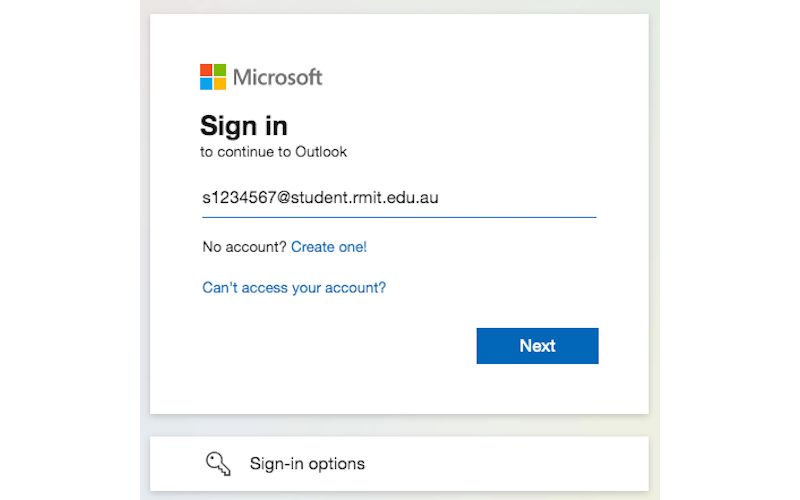
An easy way to tell is the login screen you see when you access all these systems is the Microsoft Sign in Portal (login.microsoftonline.com).
RMIT ID and password
All other RMIT systems, currently require RMIT ID and password, including:
- Canvas
The login screen for these systems is the RMIT MyApps Portal (myapps.rmit.edu.au).
 MyApps Portal
If your RMIT ID starts with the letter 'O', you will be asked to enter a one-time passcode (OTP). This passcode will be sent to the personal email address listed on your RMIT account. If you have any issues with receiving this code, contact IT Service Connect.
Log in for the first time
RMIT email address
Your RMIT email address is the letter 's' followed by your student number (excluding any additional letters) and ‘@student.rmit.edu.au’.
Example: s1234567@student.rmit.edu.au
RMIT ID
Your RMIT ID is the letter ‘s’ followed by your student number (excluding any additional letters).
Example: s1234567

Don't know your student number?
You’ll find your student number listed in your RMIT enrolment email.
Temporary password
Your temporary password is the letter 'p' followed by your date of birth backwards, with an exclamation mark '!' at the end.
Example: If your date of birth is 8 April 1998, then your password is p19980408!
Log in to the Self-Service Password Reset system using your RMIT email address OR RMIT ID and temporary login password, and change your password to something hard to guess but easy to remember. Find out how to create a strong password.
Set up your self-service details – that way, if you ever forget your password, you can reset it yourself online.
- Create your challenge questions and answers
- Make sure your mobile and personal email contact details are correct. To check and edit your personal details, follow the relevant instructions below.
- RMIT University students: Log in to Enrolment Online, select My student record > Contact Information > Mobile phone and Student email
- RMIT UP and RMIT English Worldwide students: Log in to Enrolment Online, select My student record or contact rewstudent.services@rmit.edu.au or foundationstudies@rmit.edu.au
- RMIT staff (only available to salaried staff)
To reset your password, you may choose to have a password reset code sent to the personal email address or mobile phone number you provide to RMIT. For information about the handling of your personal information, please go to RMIT Privacy Statement.
Multi-factor authentication (MFA) is required when logging in to most RMIT systems and applications. This increases our cyber security and further protects RMIT's systems.
You must register for MFA on your device or you will not be able to access the systems and applications that require MFA.
That's it, you're all set up and ready to use RMIT systems! For easy access to all RMIT student systems, see the Student essentials section at the top of the Current students homepage.
How to reset your password

RMIT password reset tool
Watch this video and learn how to use RMIT's self-service reset tool to change your password.
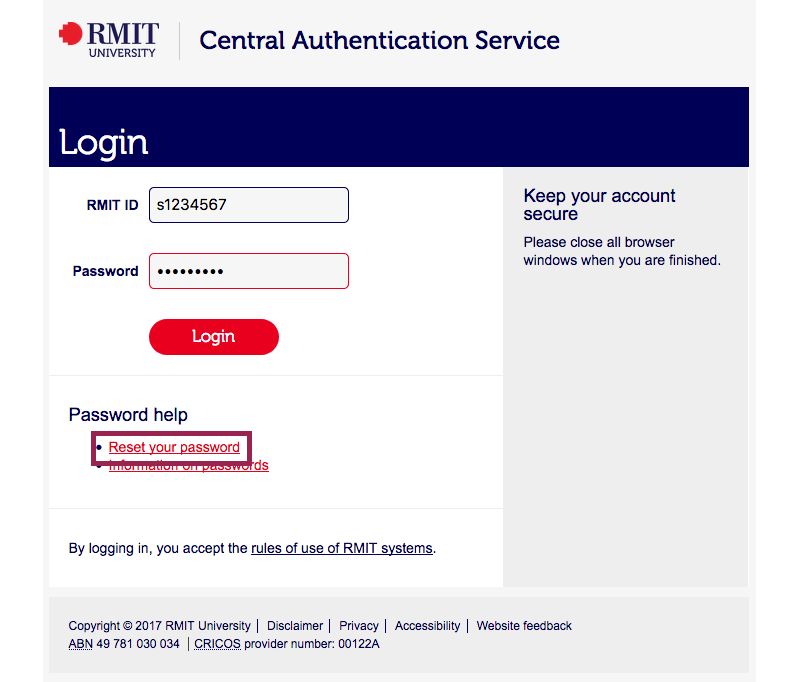
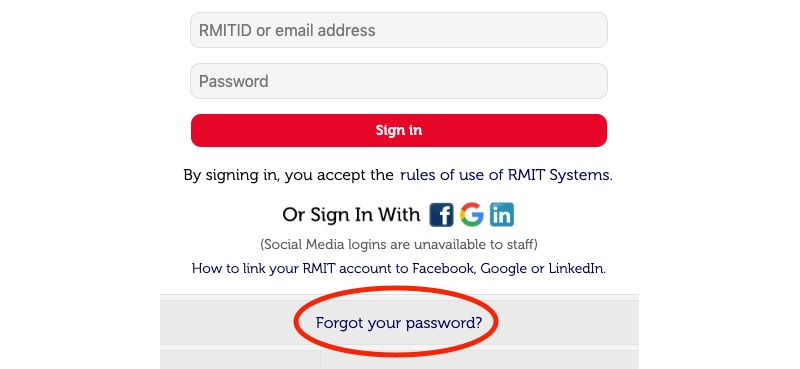
Go to Self Service Password Reset or select the "Reset your password"/"Forgot your password?" link at any CAS or MyApps login page.
- Enter your staff ID and last name
- Complete the "I'm not a robot" reCaptcha test
- Press Submit.
- Choose whether you would like the password reset code sent to your mobile or to your personal email address.
- An access code will now be sent to you so that you can reset your password.
Retrieve the code and enter it into the field (the code is case sensitive).
You can now create a new password for your account.
How to link your RMIT account to social media
Sign in to the RMIT MyApps portal using your RMIT email address or RMIT ID and password.
Once you have signed in, you will be presented with a page which has icons to link your RMIT account to Facebook, Google or LinkedIn. Select the social media platform you wish to link your RMIT account to.

Select the Facebook icon.

You will be redirected to Facebook 'Login'.
Provide your Facebook credentials and click on 'log In'.

Upon successful authentication to Facebook, you will be presented with a Privacy Policy statement.
Read through the privacy policy. If you agree with the terms presented, click on Continue.

When you click continue, you will be redirected back to the RMIT MyApps portal.
Select the Google icon.

You will be redirected to Google 'login'.
Provide your Google credentials and click 'Next'.


Upon successful authentication to Google, you will be redirected back to the RMIT MyApps portal.
Select the LinkedIn icon.

You will be redirected to LinkedIn 'Login'.


Provide your LinkedIn credential and click on ‘Sign In’.
Upon successful authentication to LinkedIn, you will be presented with a Privacy Policy statement.
Read through the privacy policy. If you agree with the terms presented, click on Allow.
When you click Allow, you will be redirected back to the RMIT MyApps portal.
To complete the linking process, you must now ‘Sign in’ again to the MyApps portal using your RMIT credentials.

Upon successfully signing in, your Facebook or Google or LinkedIn account will now be linked to your RMIT account.
Post set up
When you choose to access the RMIT portal via social media, you will be taken to the social media ‘Login’ page. Your existing social media credentials will be required to ‘Login’. If you are already logged in to the social media provider, you will be logged in automatically.
Note: ‘Logging out’ from your social media accounts will not log you out of your RMIT account.