Multi-factor authentication is required when logging in to RMIT systems and applications.

Microsoft is retiring SMS and voice authentication on 1 February 2027
If you use these options to sign in to RMIT systems, switch to a supported authentication method by 30 November 2026 to ensure your access to systems is maintained. RMIT recommends using the free Microsoft Authenticator app. Download and setup instructions are available below.
What is MFA?
Multi-factor authentication (MFA) is required when logging in to most RMIT systems and applications. It strengthens cyber security across the University and helps protect both RMIT’s systems and your personal information.
MFA requires you to provide more than one form of verification to be granted access to a system or application. MFA on RMIT systems requires a user to provide two factors of verification:
- an email address and password, and
- a unique number you will need to enter into the authenticator app or a passcode sent to your mobile phone.
Students and staff must register for MFA on their devices following the steps below or they will not be able to access the systems and applications that require MFA.
How to set up MFA

Setting up MFA for the first time?
If this is your first time setting up multi-factor authentication (MFA), we recommend using both a computer and a phone. However, if you only have access to a phone, you can still set up MFA by following the instructions below.
Before you start
On your mobile phone, install the Microsoft Authenticator app.
Set up the Microsoft Authenticator app
Computer and phone instructions
If you are setting up you multi-factor authentication using a laptop and phone, please follow the below instructions. You can also or download MFA Computer and Phone the PDF Guide.
1. On your computer, go to https://aka.ms/mfasetup.
2. If prompted, sign in with your RMIT email address and password.
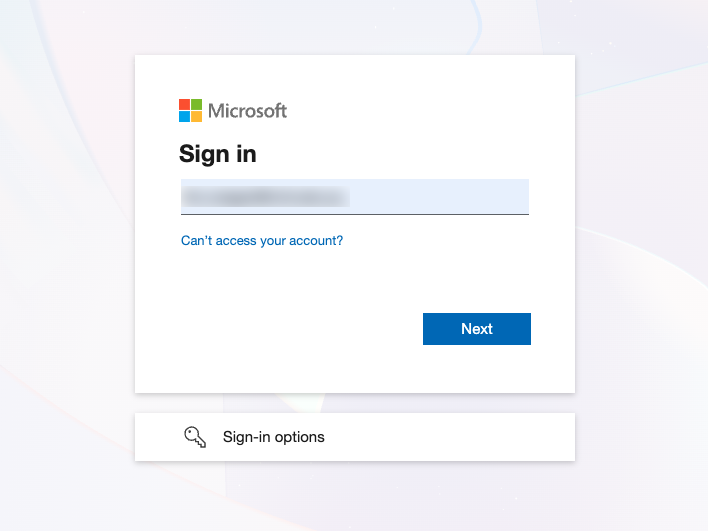 Step 2
3. Select Next.
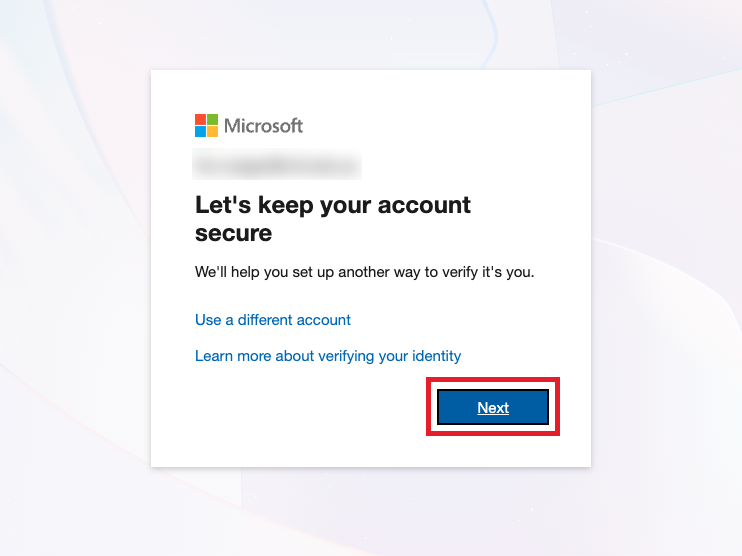 Step 3
4. Select Next.
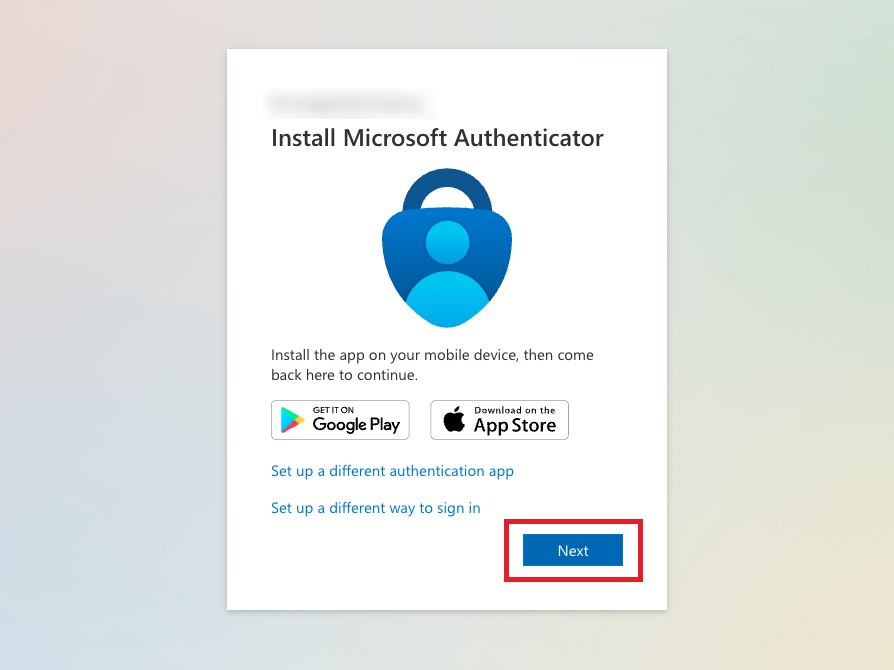 Step 4
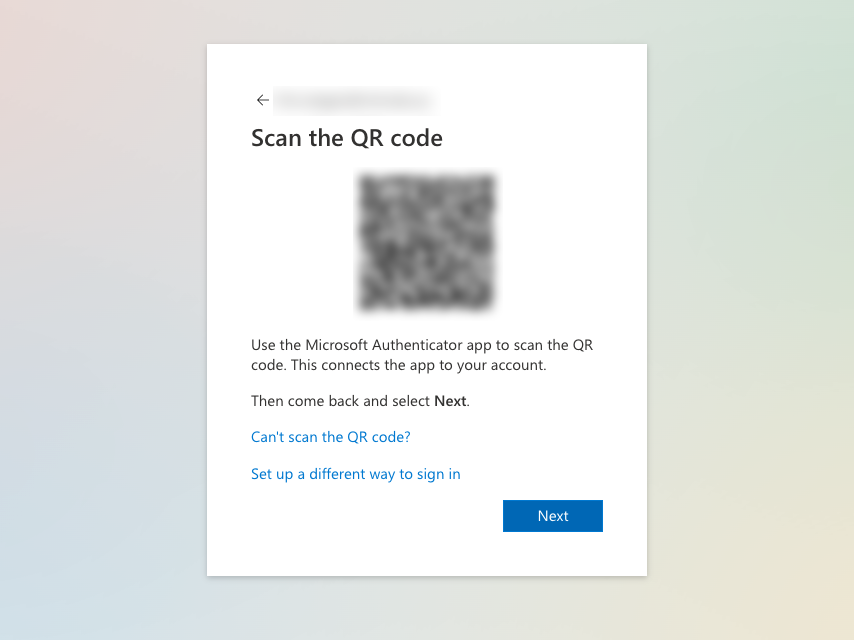
5. Select Next. A QR code will appear on your screen.
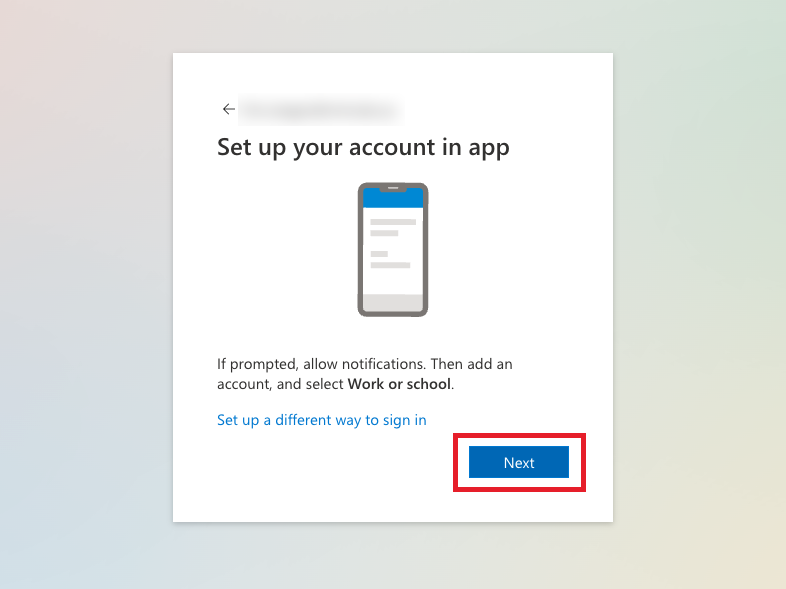 Step 5.1
 Step 5.2
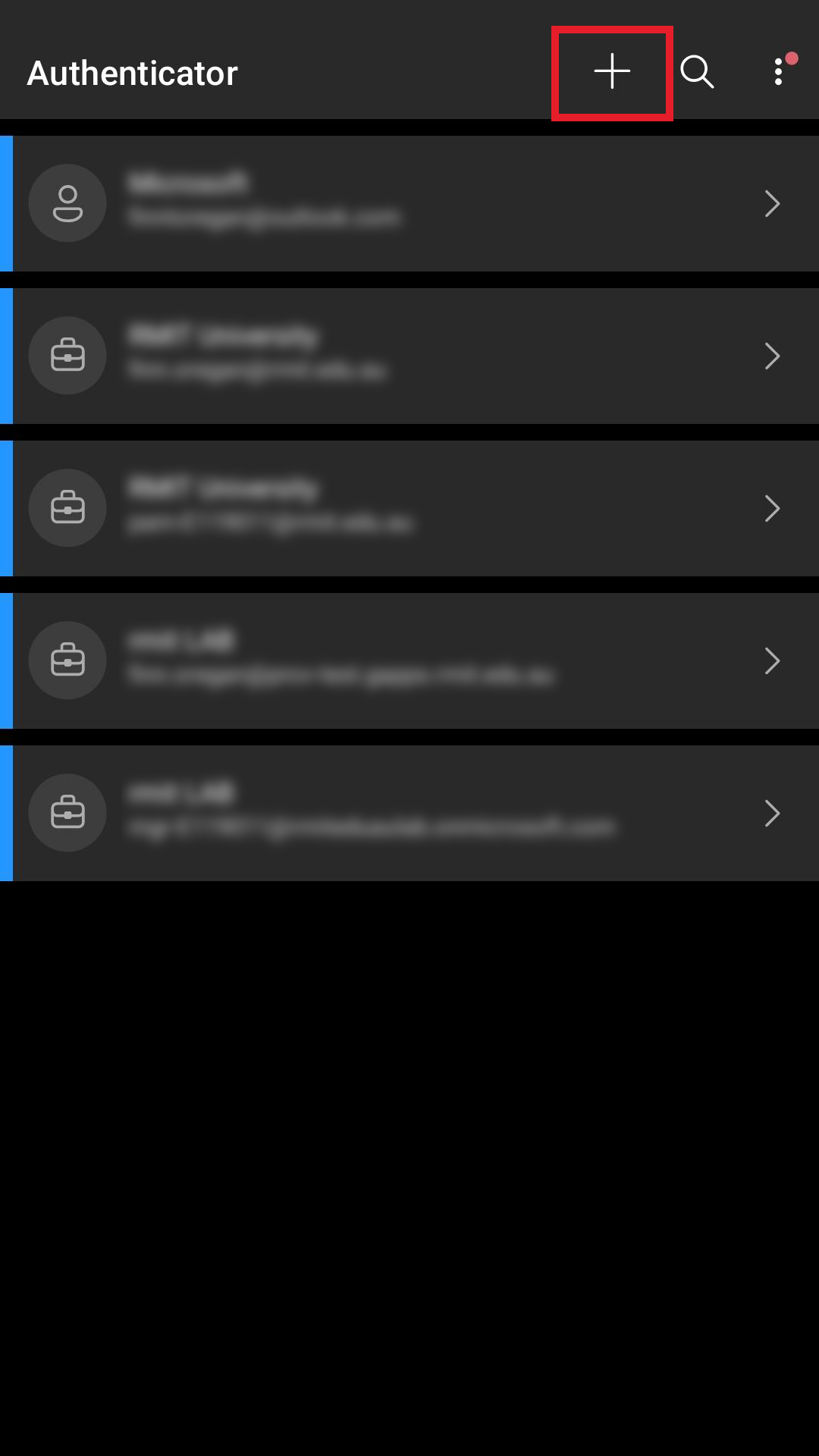
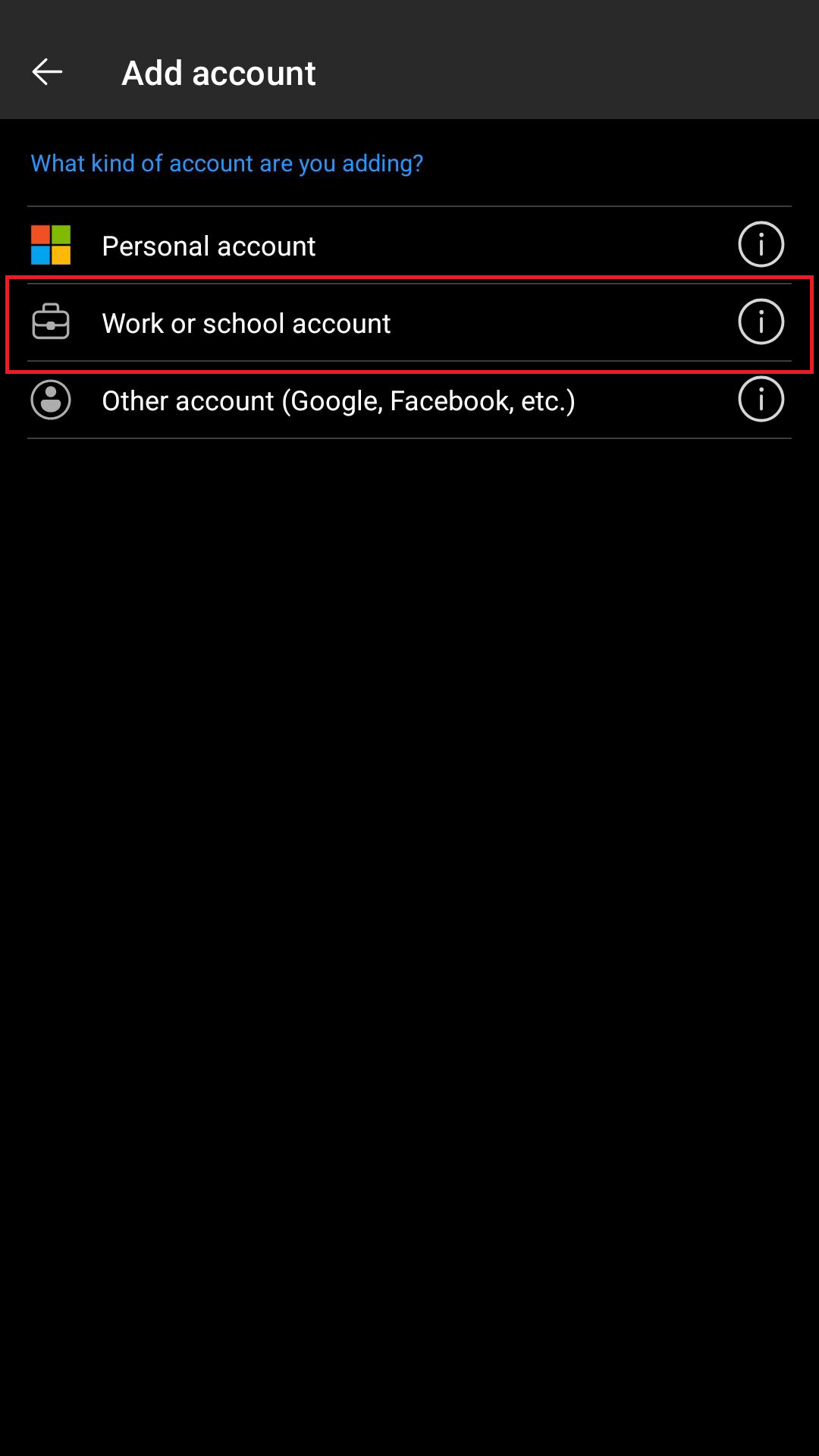
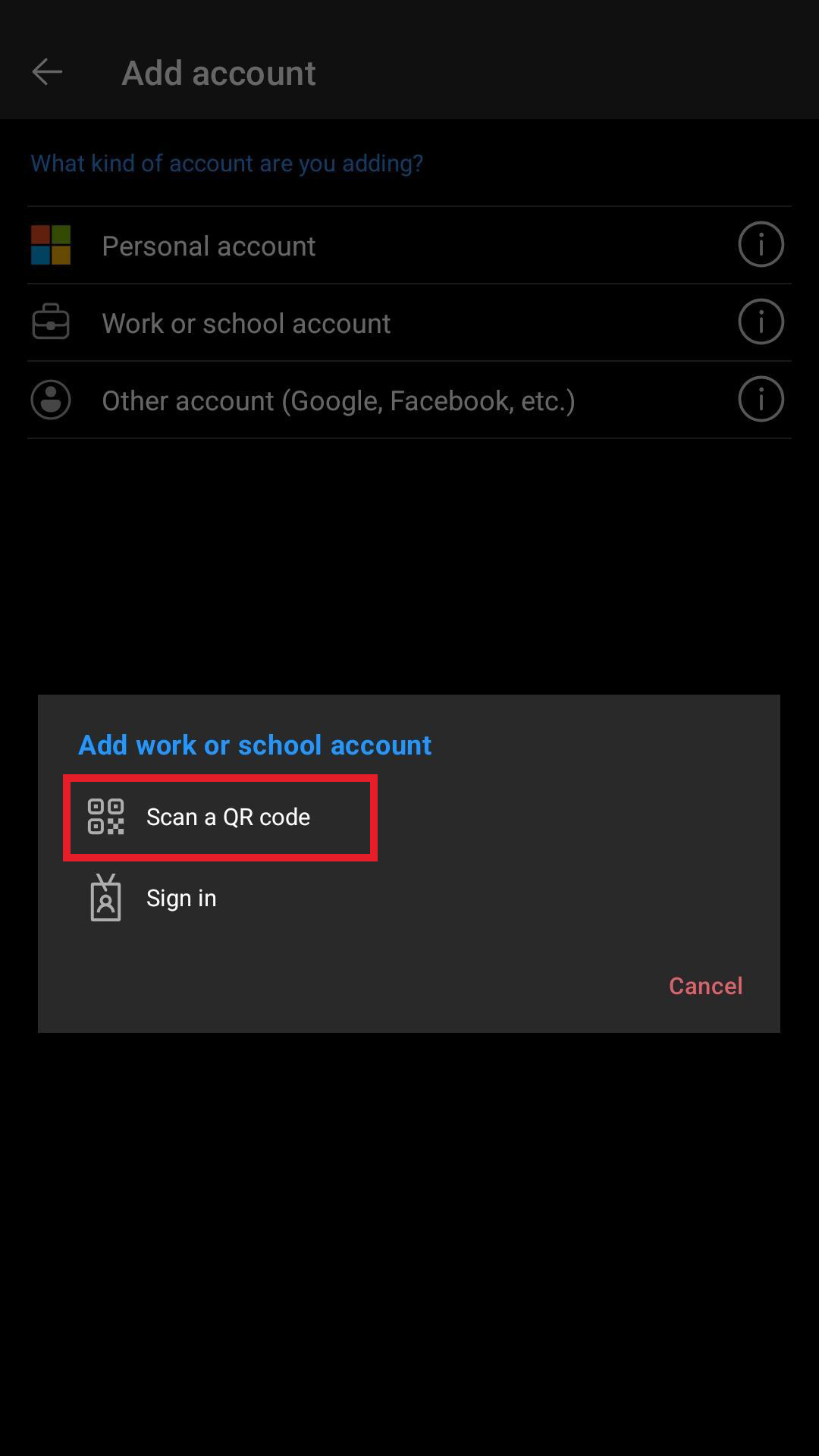
6. On your phone, open Microsoft Authenticator app and select the '+' icon at the top, then work or school account, then scan a QR code.
 Step 6.1
 Step 6.2
 Step 6.3
7. Use your phone to scan the QR code displayed on your computer.
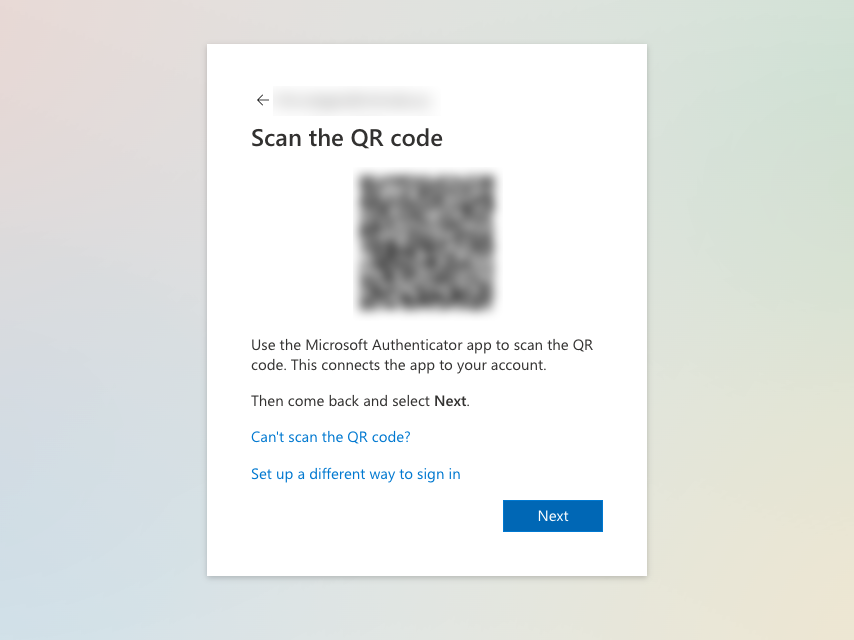 Step 7
8. On your computer, select Next.
9. A notification will be sent to your phone. Enter the number shown on your computer into the Microsoft Authenticator prompt on your phone and select Yes to approve.
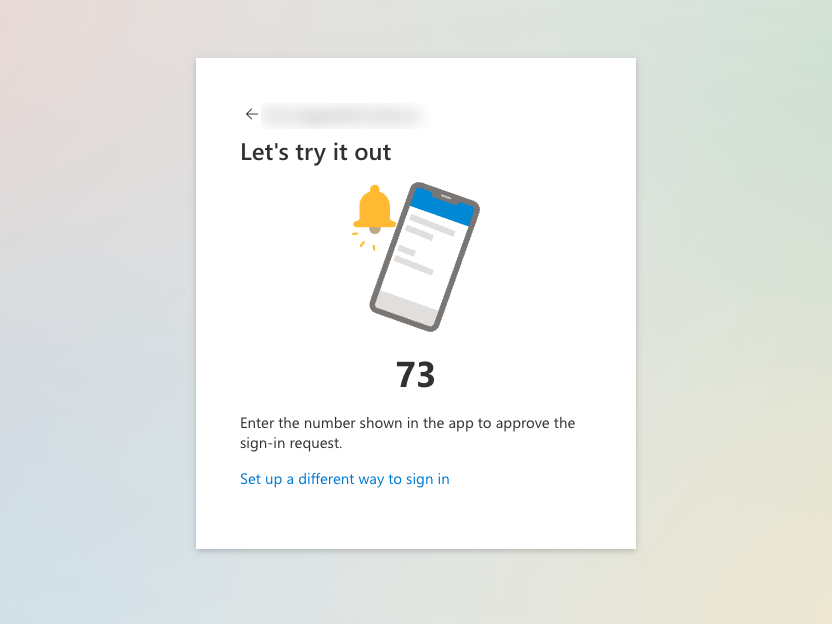 Step 9.1
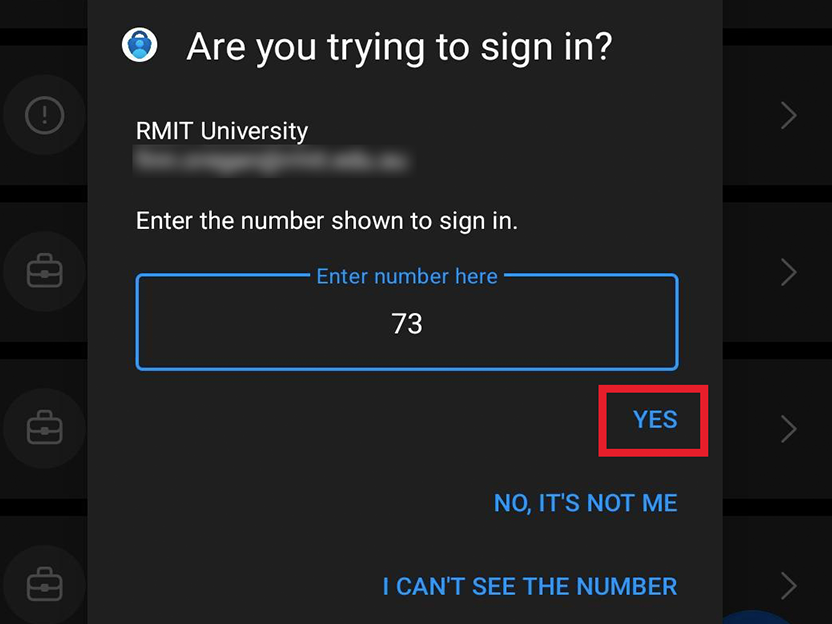 Step 9.2
10. Select Done on your computer.
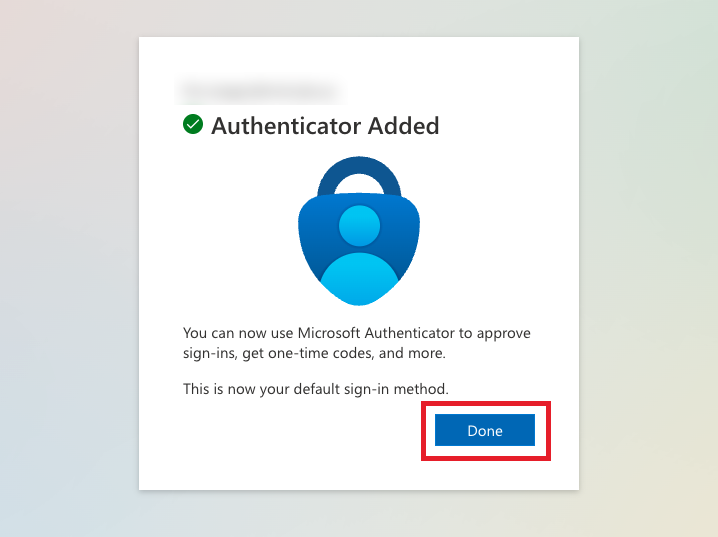 Step 10
All done!
Your MFA is now set up with Microsoft Authenticator.
Phone-only instructions
If you are setting up you multi-factor authentication using a phone only, please follow the below instructions. You can also download the MFA Phone-only PDF guide.
1. In your phone’s web browser, go to https://aka.ms/mfasetup.
2. If prompted, sign in with your RMIT email address and password.
Step 2
3. Select Next.
Step 3
4. Select Next.
5. Select Pair my account to the app by clicking this link. The Microsoft Authenticator app will open, and your email address should appear.
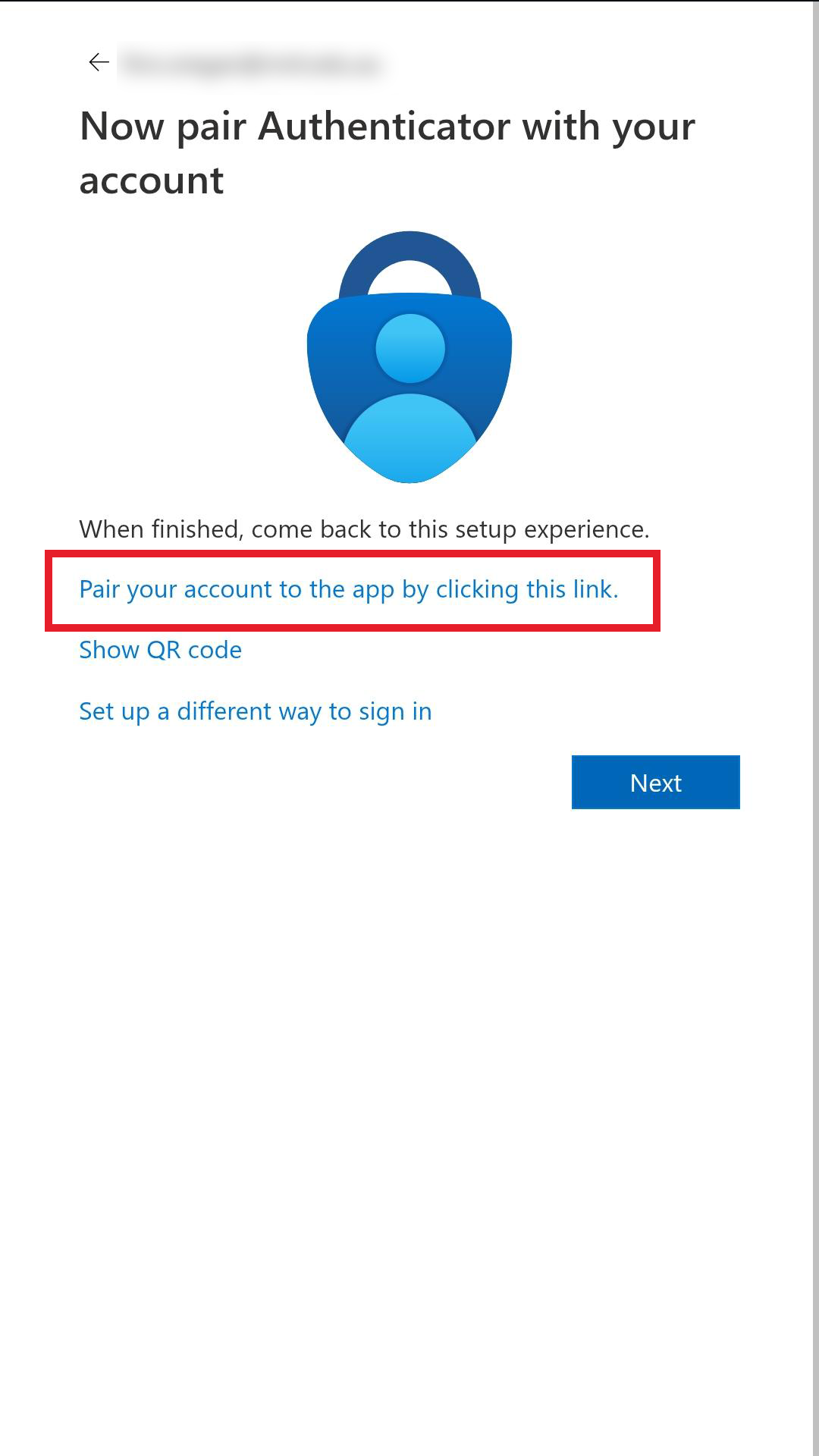 Step 5.1
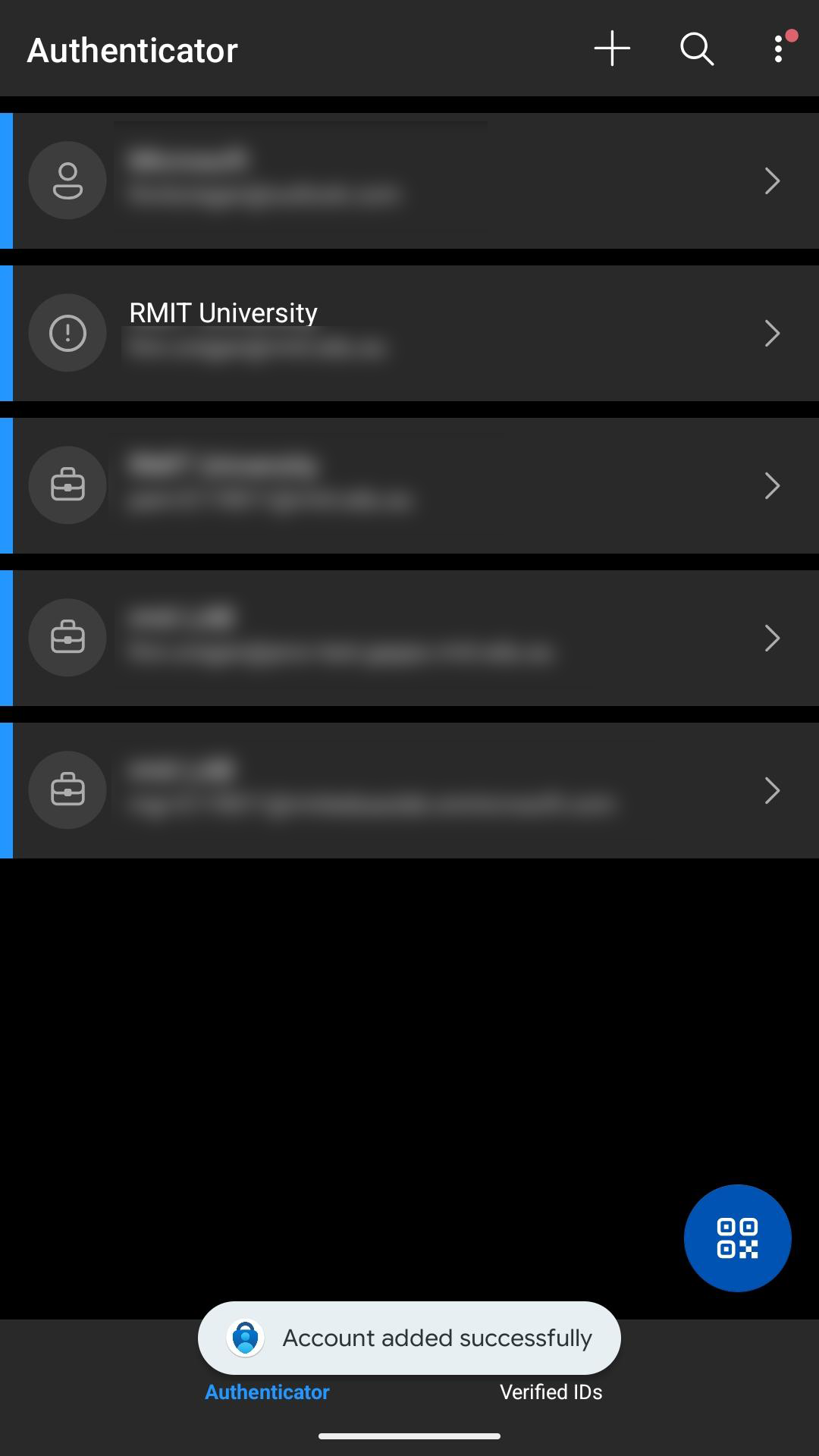 Step 5.2
6. Switch back to your web browser and select Next.
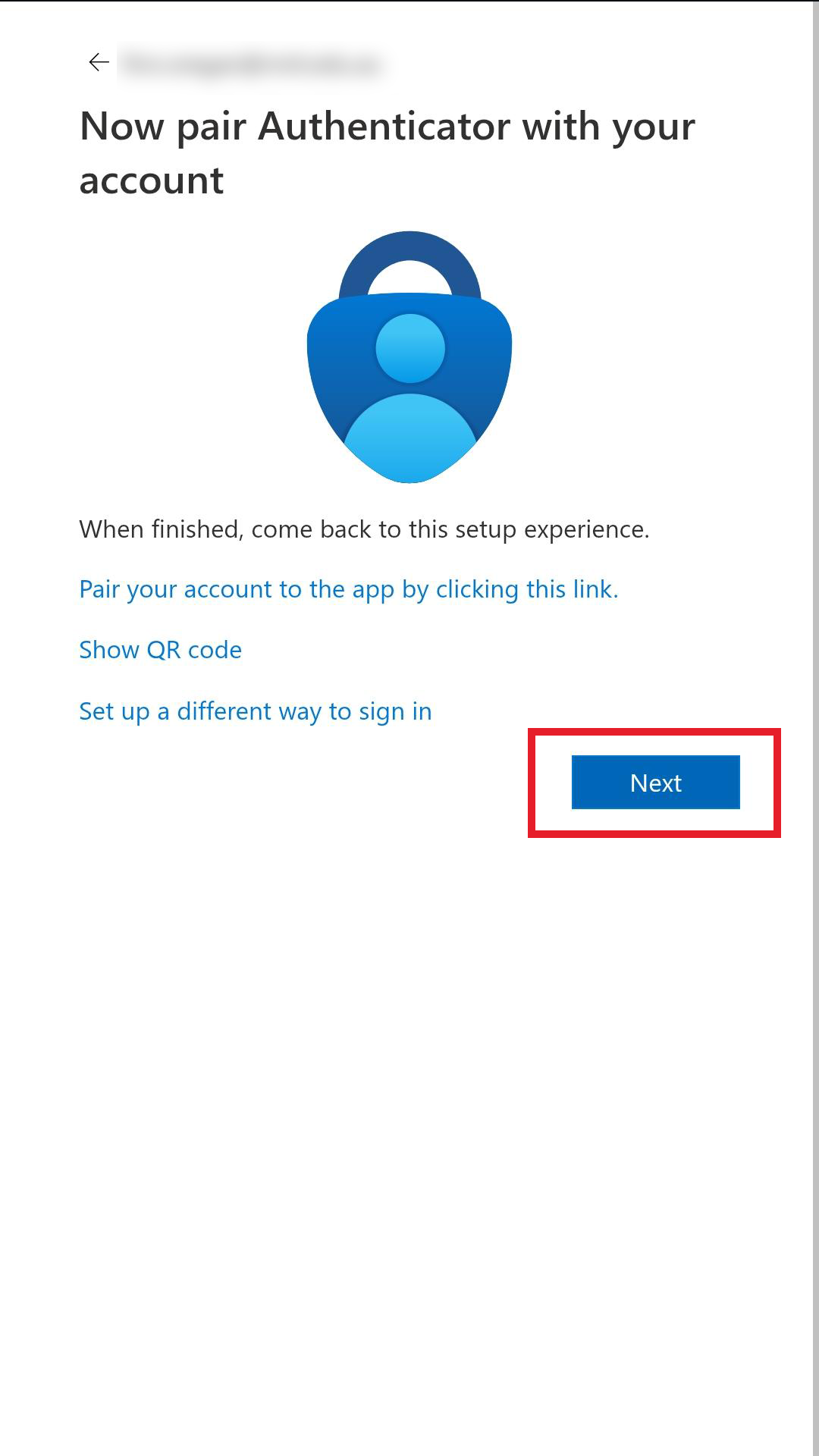 Step 6
7. A notification will be sent to your phone. Enter the number shown in your browser into the Microsoft Authenticator prompt and select Yes to approve.
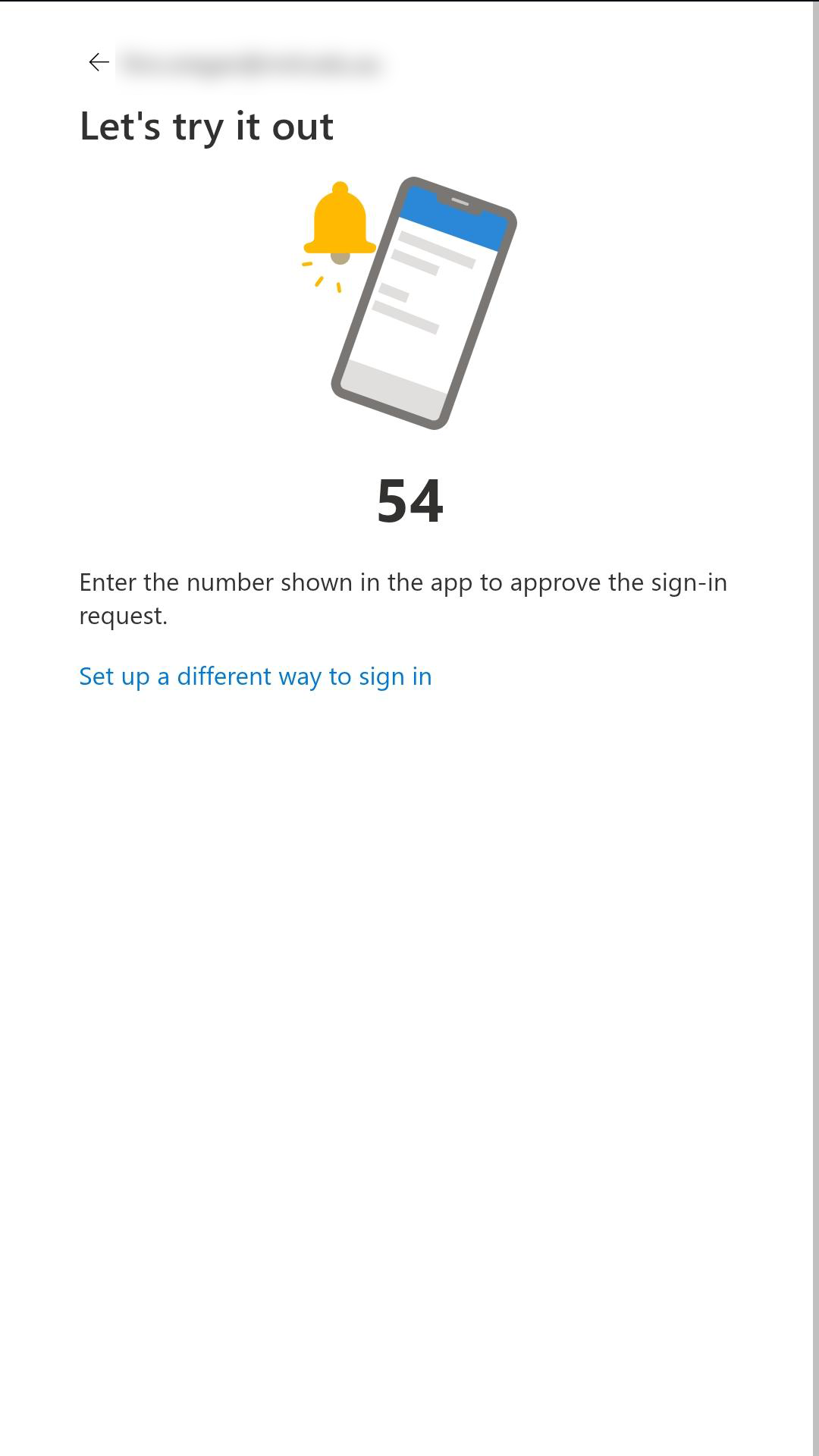 Step 7.1
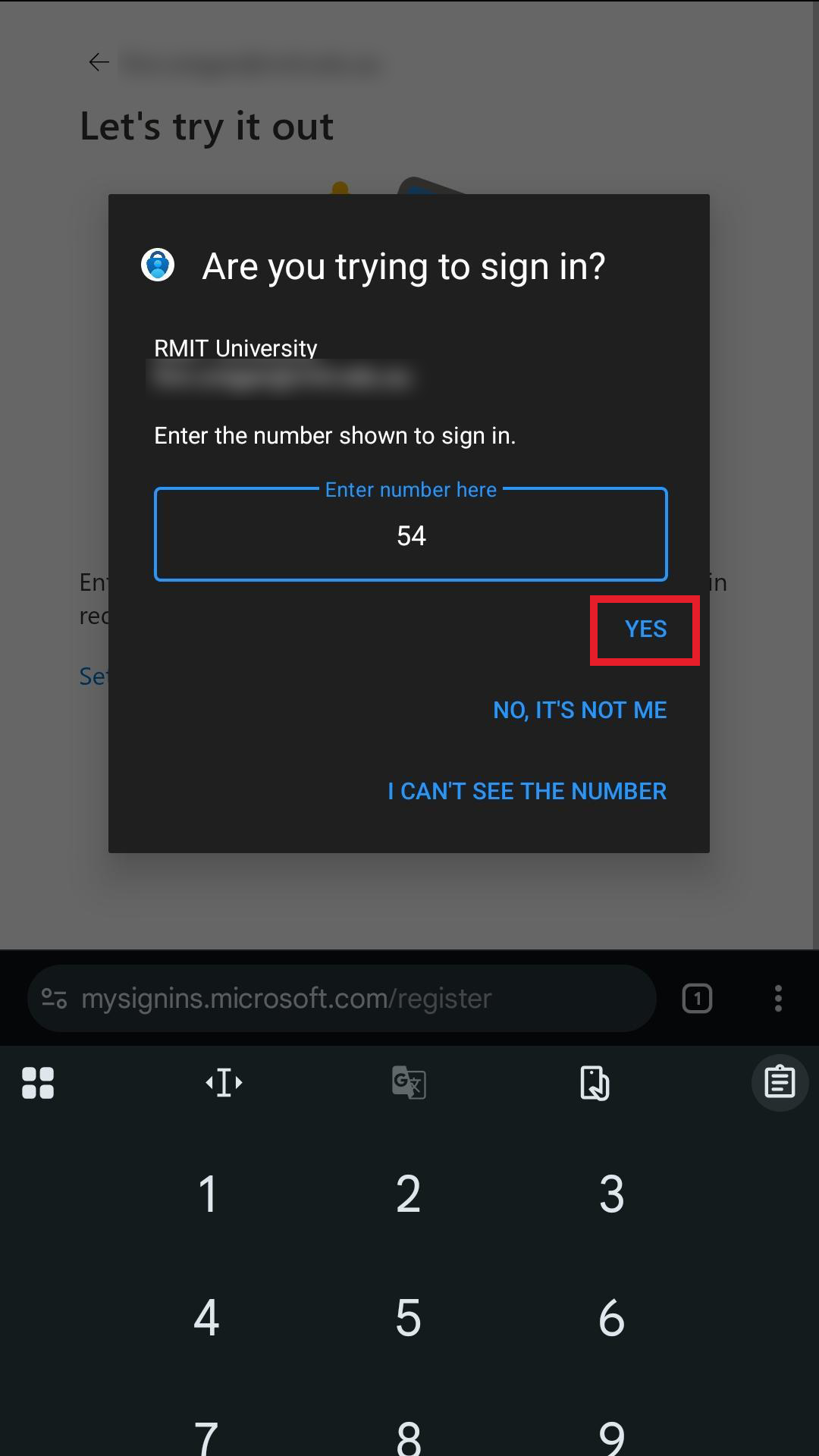 Step 7.2
8. Select Done.
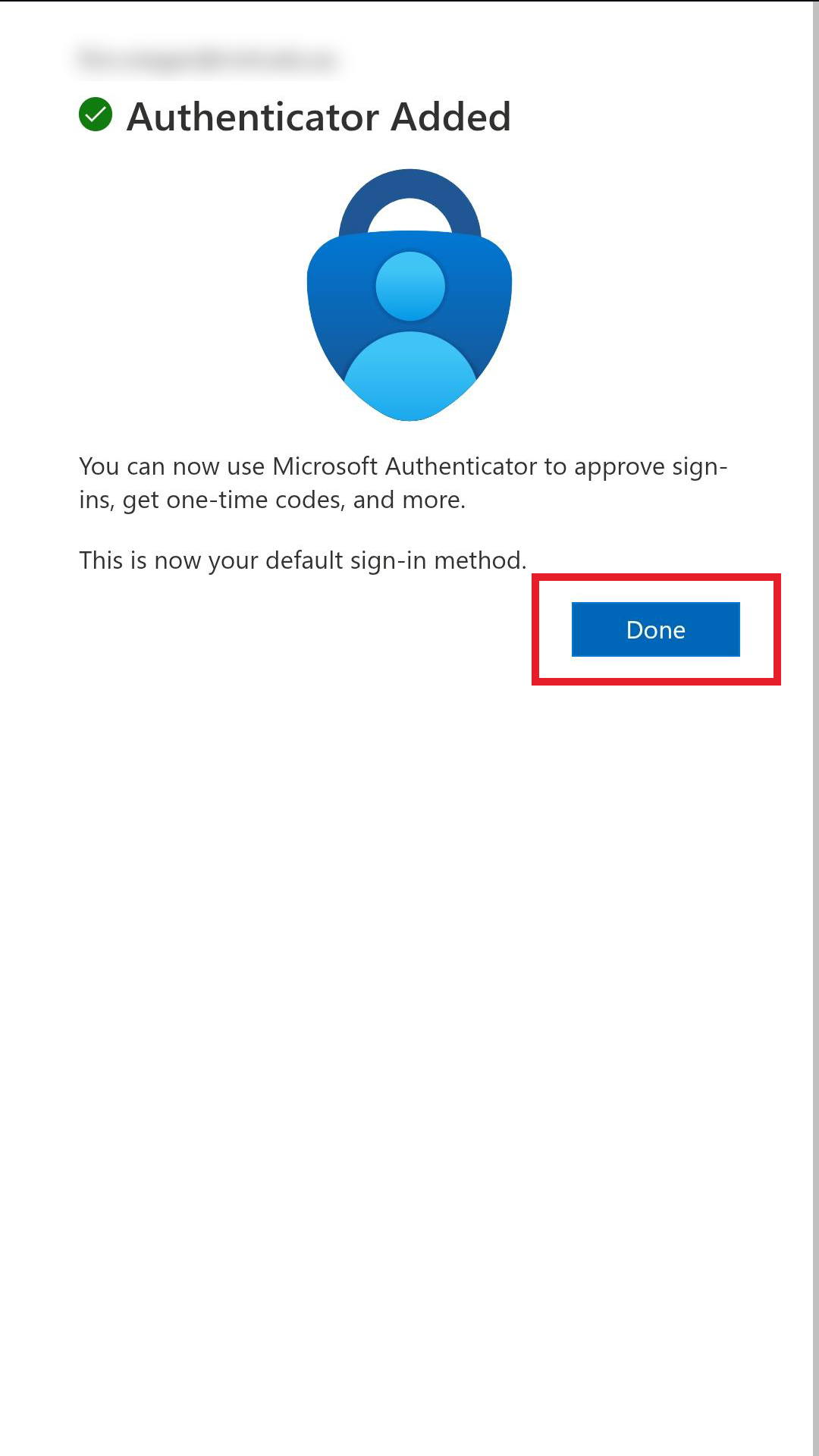 Step 8
All done!
Your MFA is now set up with Microsoft Authenticator.
Frequently Asked Questions
You will need MFA to sign in to all Microsoft 365 services (such as Outlook, Teams and OneDrive), myDesktop, Enrolment Online and myTimetable, as well as a range of other RMIT systems.
No. You will only be asked to verify your sign in:
- About every 30 days on a trusted device
- When you use a device you haven’t used to sign in before
- When you use a browser you haven’t used to sign in before
- When you sign in from a different country to your last sign in.
Microsoft Authenticator only requires:
- Access to your camera (to scan the initial QR code), and
- Permission to send notifications (so you can receive and approve sign-in prompts).
No. If your phone is lost, stolen, broken or otherwise unavailable and you can’t complete MFA, contact IT Service Connect for assistance.
Yes. Microsoft Authenticator will work overseas as long as you have either a WiFi connection or an international mobile plan that allows data.
Yes. You can add multiple accounts to Microsoft Authenticator. There is no set limit on the number of accounts you can add.
Need help?
- For information about login details or to reset your password, go to RMIT ID and password
- For personalised help, contact IT Service Connect